Using MetaMask
After you have installed the MetaMask wallet extension, open your Chrome browser. You should see a small fox icon in the top right-hand corner of your browser or under the browser extensions menu. You will use this icon to access and manage your MetaMask wallet.
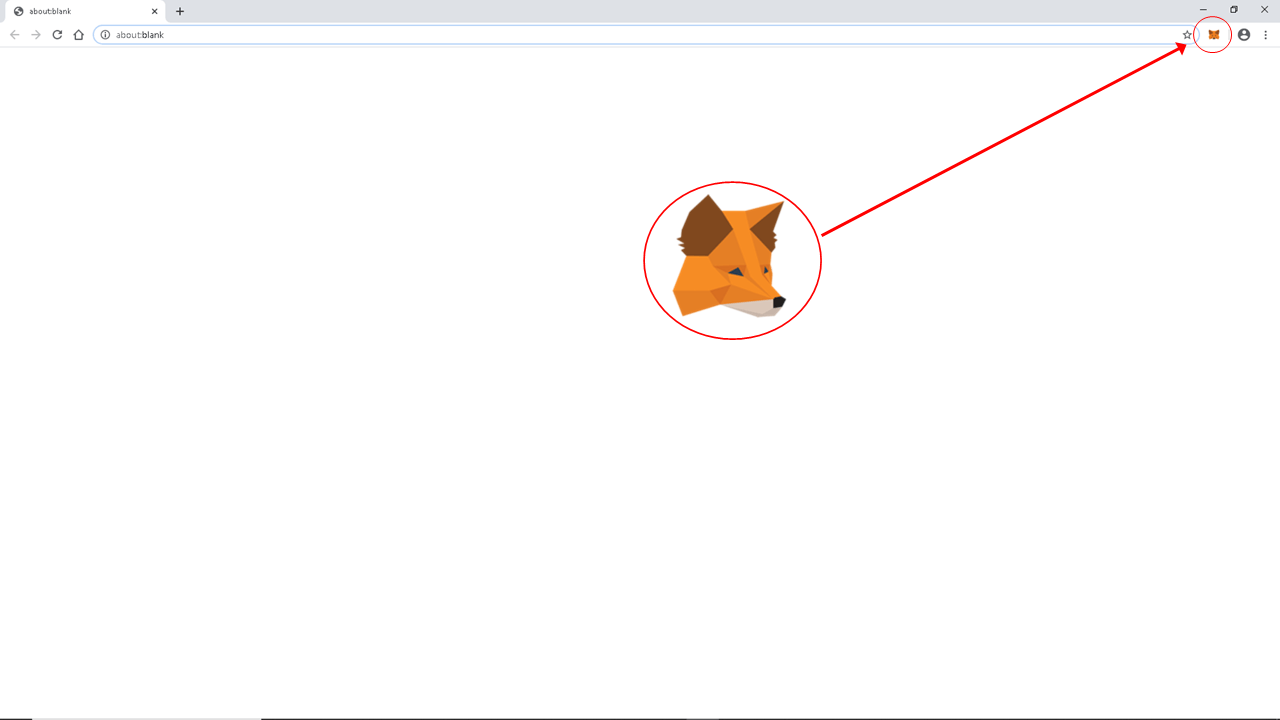
Managing MetaMask Extension
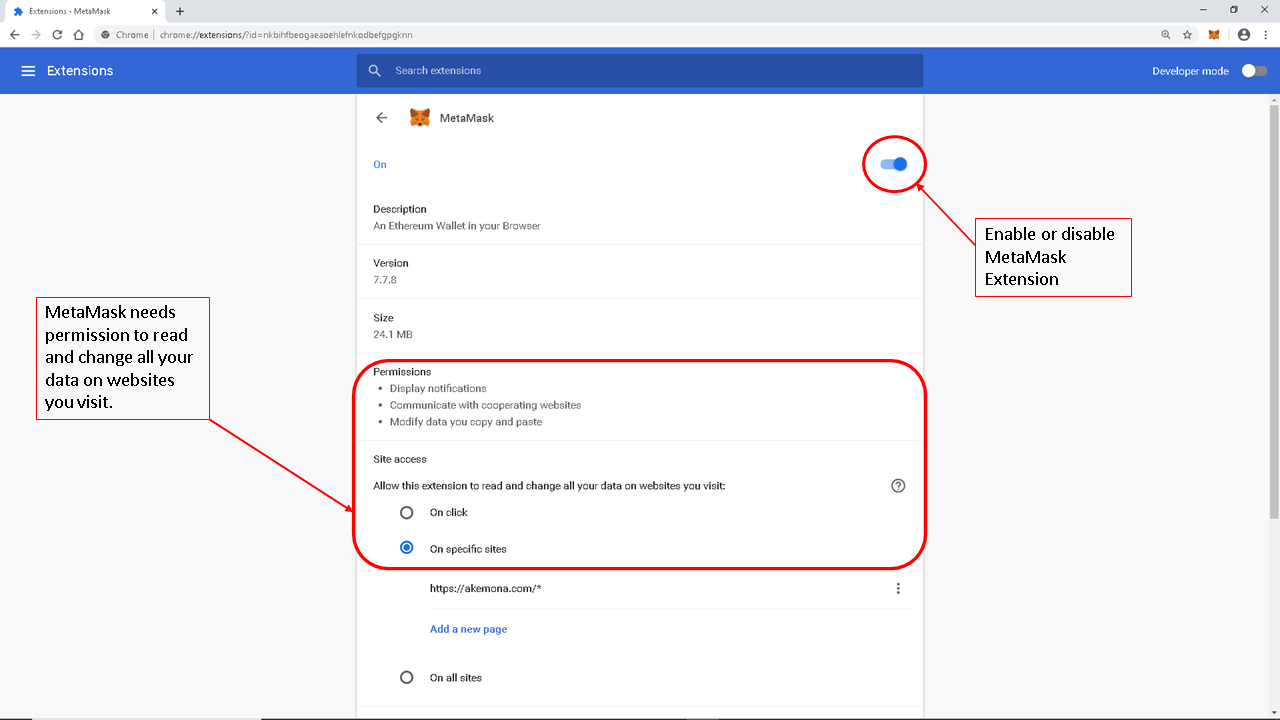
If you right-click on the MetaMask fox icon, a drop-down menu will appear. You can manage the MetaMask extension from this menu. One of the menu items may say, “This can read and change site data.”
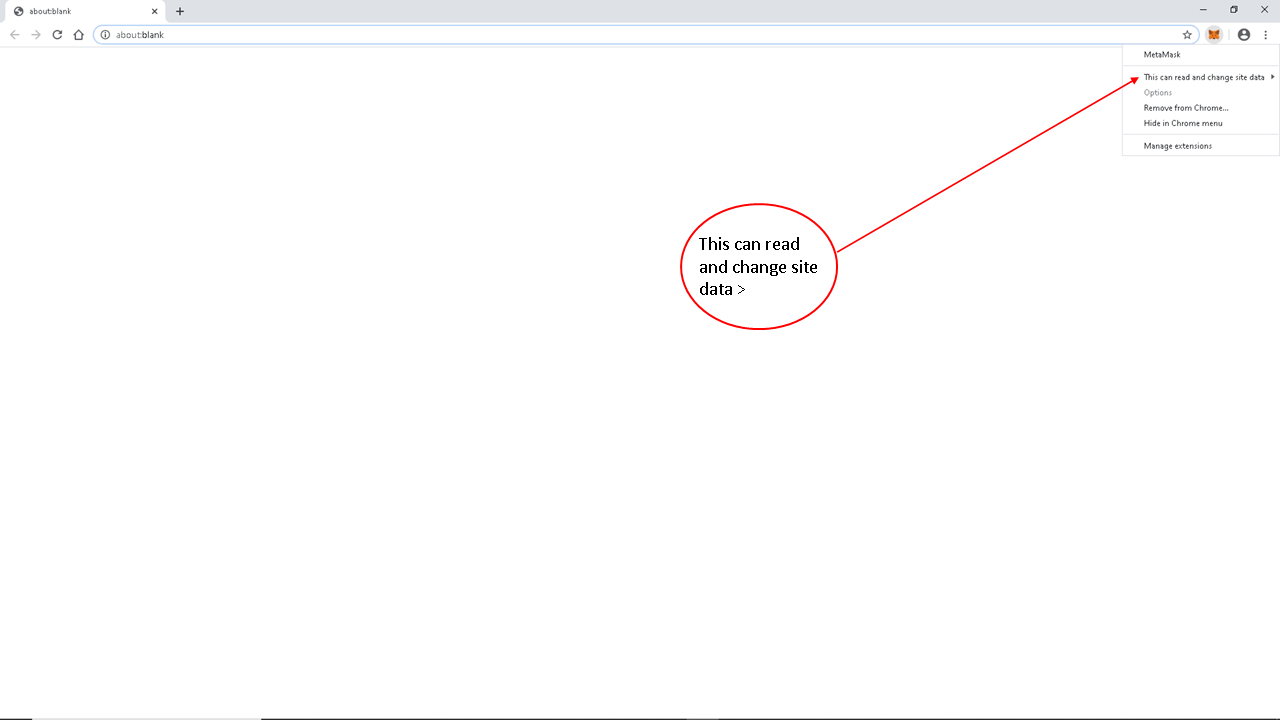
Please note that MetaMask may need permission to read and change site data in order to connect your wallet to websites and blockchain applications. Depending on your browser settings, you may allow the extension to run on all sites, only on specific sites, or only when you click the extension. You may want to review the following link about why browser extensions require permission to read and change data on websites: https://www.howtogeek.com/291095/why-do-chrome-extensions-need-all-your-data-on-the-websites-you-visit/. After you are done using the MetaMask extension, you may disable it if you choose. If you disable the extension, remember to re-enable it the next time you need to use your MetaMask wallet.
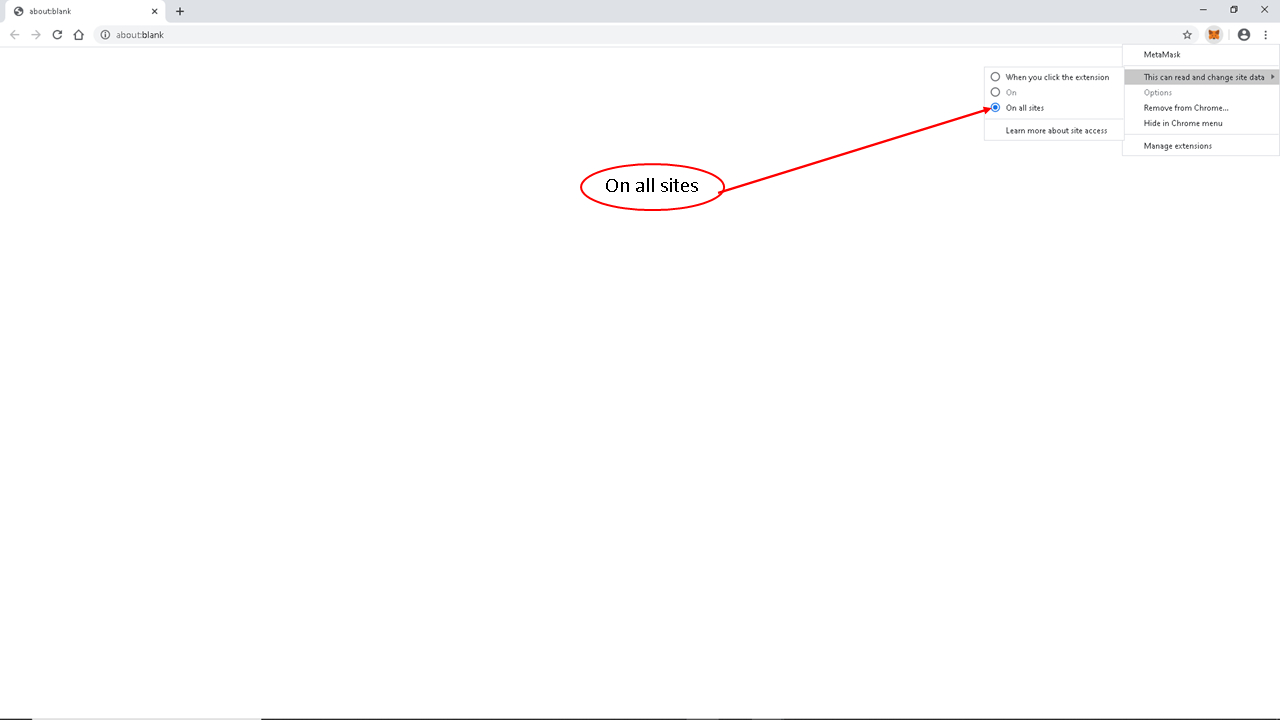
Enabling and Disabling MetaMask Extension
If you would like to enable or disable the MetaMask extension, click “Manage extensions” from the drop-down menu that appears when you right-click on the MetaMask fox icon.
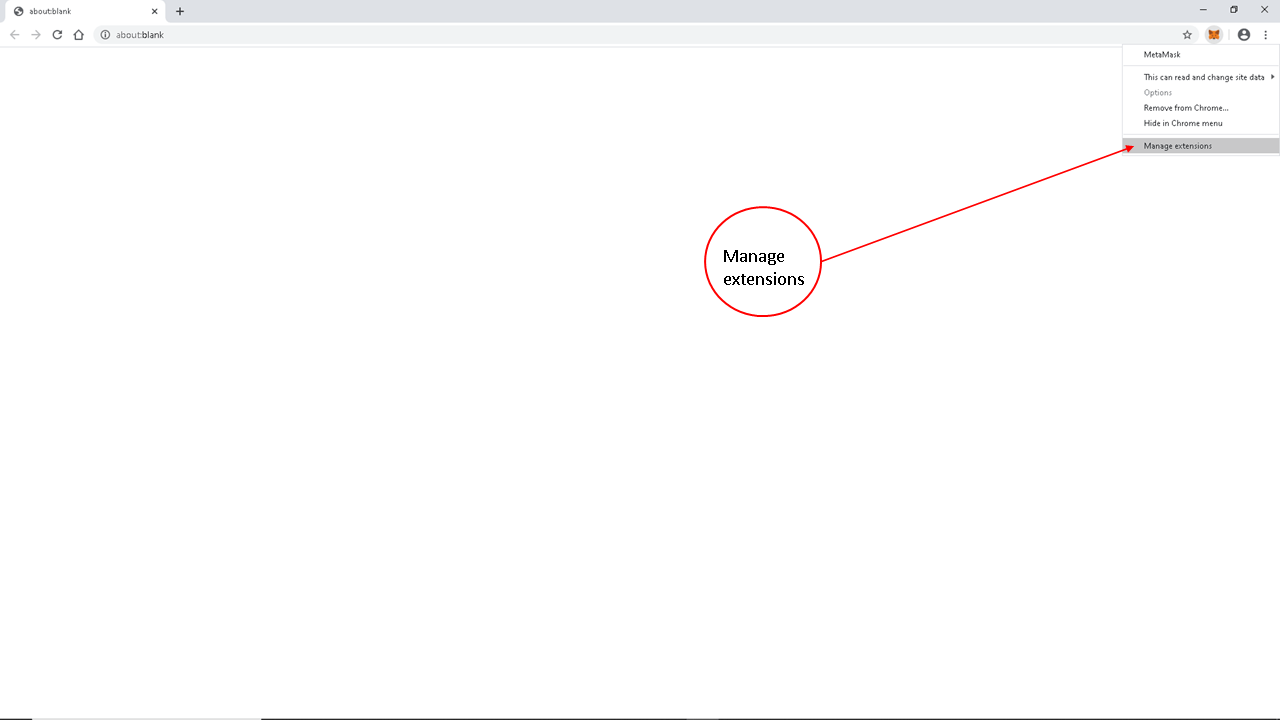
After clicking “Manage extensions,” an expanded view of the extension will appear in a new browser tab. You can turn the extension on or off using the button at the top of the page. If you decide to disable the MetaMask extension, we recommend that you make a note of it so that you remember to re-enable it the next time you need to use your MetaMask wallet.
Logging In and Logging Out of MetaMask Wallet
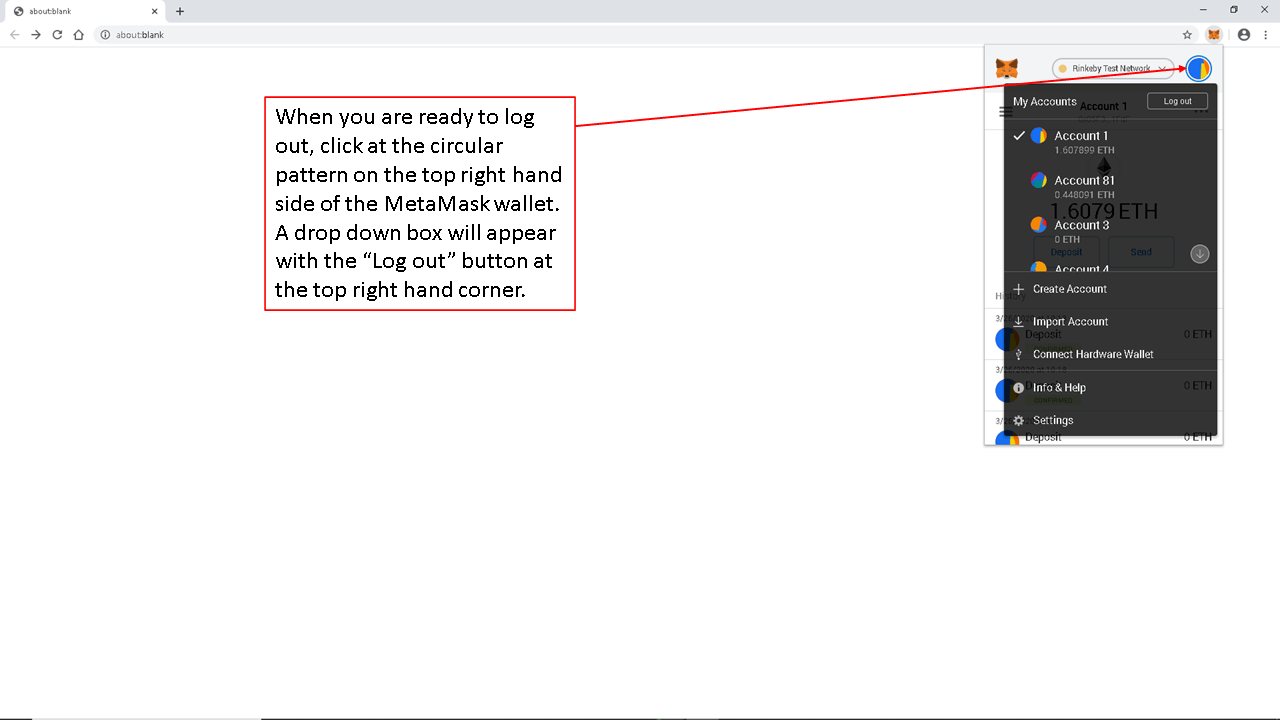
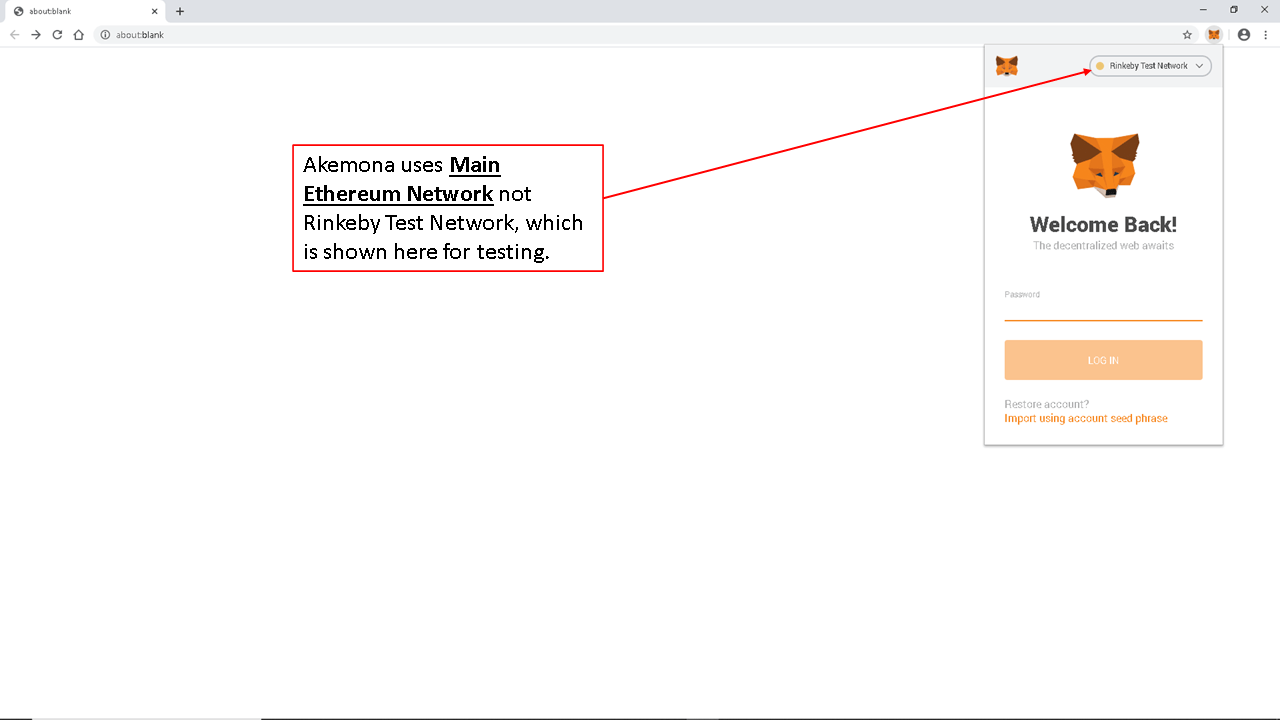
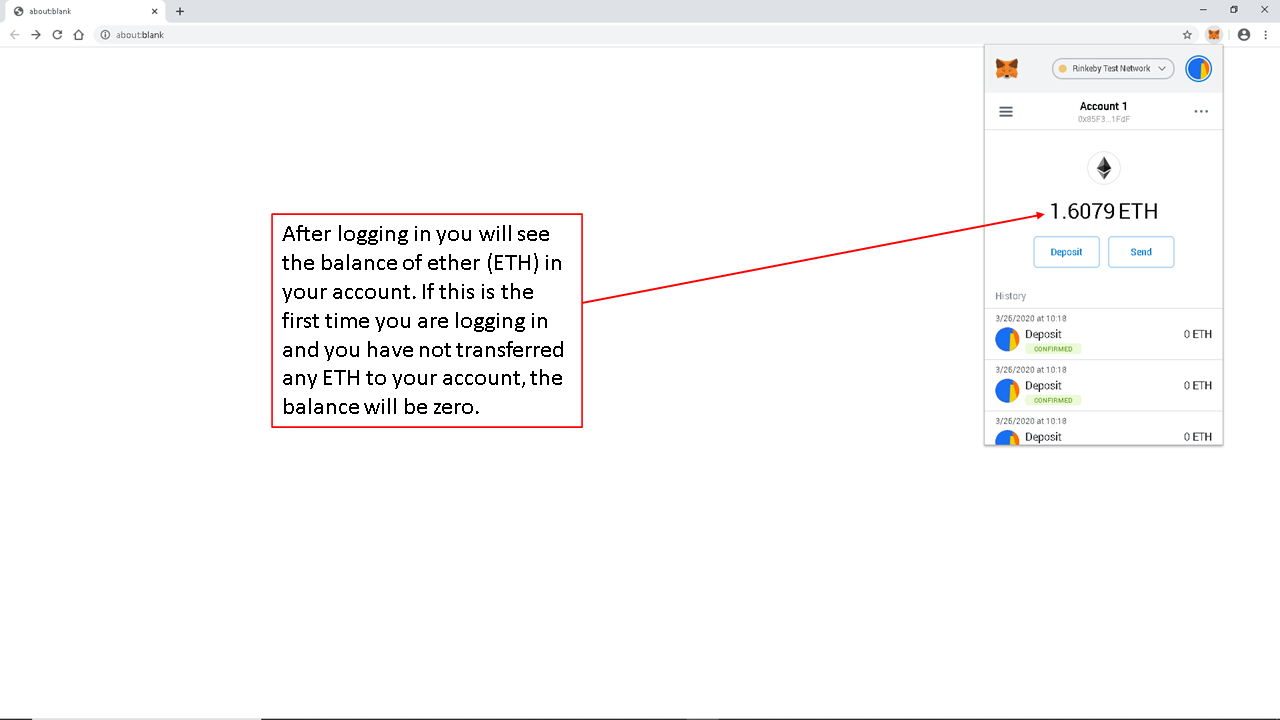
When you left-click on the MetaMask fox icon in the top right-hand corner of your browser, or open it from the browser extensions menu, the MetaMask wallet login box will appear. In the picture below, the wallet is connected to the Rinkeby Test Network. Rinkeby has been deprecated and is no longer used for current Ethereum testing. In production, Akemona may support Ethereum Mainnet, Polygon PoS, Arbitrum, BNB Chain, or another supported blockchain network, depending on the token offering. Please make sure that your wallet is connected to the blockchain network required for the applicable offering.
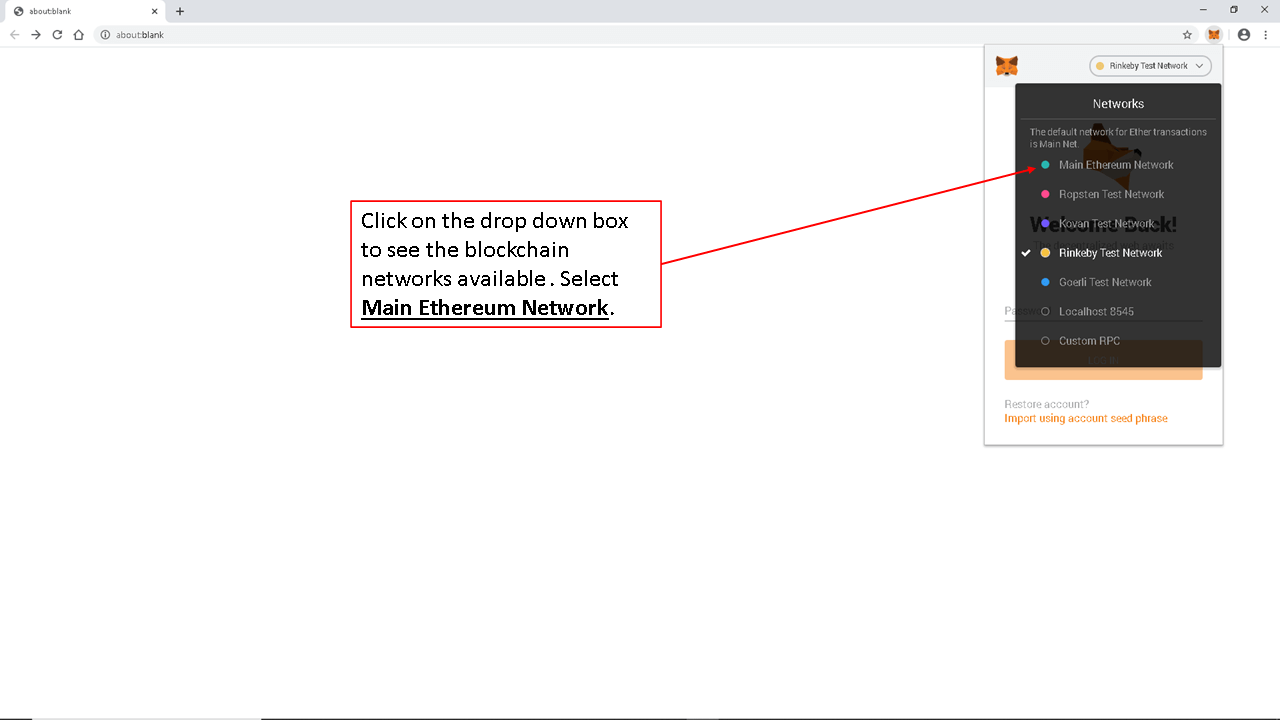
To select the correct blockchain network, click the network menu at the top of the MetaMask wallet and choose the network required for the applicable offering, such as Ethereum Mainnet, Polygon PoS, Arbitrum, or another supported network.
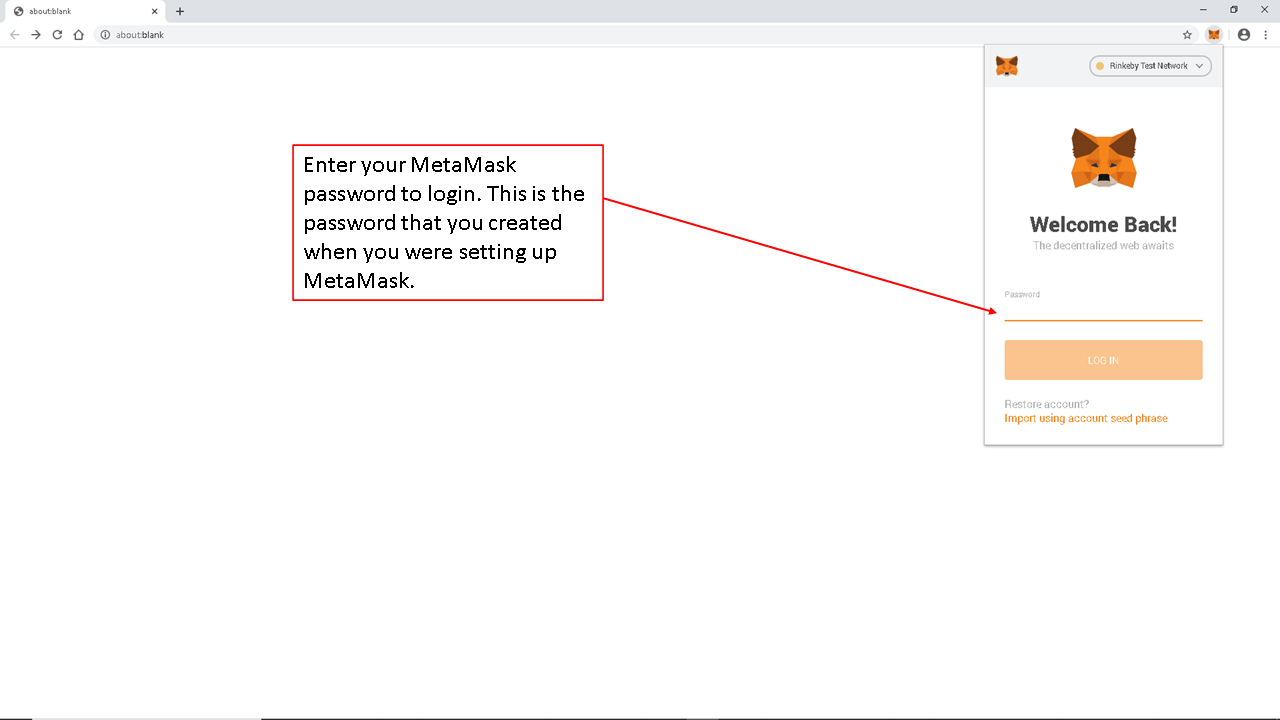
To log in, enter the MetaMask wallet password that you created when you installed and set up the MetaMask extension.
After logging in, you will see the balance of the native token for the selected blockchain network. For example, on Ethereum Mainnet, you will see your Ether (ETH) balance. If this is the first time you are logging in and you have not transferred any ETH to your account, the balance will be zero.
Each blockchain transaction requires payment of a network transaction fee, commonly called gas. Gas is paid in the native token of the blockchain network. On Ethereum Mainnet and Arbitrum, gas is generally paid in ETH. On Polygon PoS, gas is generally paid in POL, although some wallets may still display MATIC if the network settings have not been updated. On BNB Chain, gas is generally paid in BNB. For more information, please see: What is Blockchain Gas?
To execute transactions, such as approving a USDC payment, buying tokens, sending tokens, transferring tokens, or interacting with a smart contract from your MetaMask wallet, you will need to have enough of the applicable native token in your wallet to pay gas. If another party sends tokens to your wallet, that party generally pays the gas for the sending transaction. However, you may still need gas later if you want to approve, transfer, sell, redeem, cancel, or otherwise interact with those tokens or a smart contract.
When you are ready to log out, click the circular account icon or account menu at the top of the MetaMask wallet. A drop-down menu will appear. To log out of your MetaMask wallet, click “Lock” or “Log Out,” depending on the version of MetaMask you are using. Closing the browser may also lock MetaMask depending on your settings, but it is safer to lock or log out directly from MetaMask when you are finished using your wallet.