MetaMask Setup
Akemona uses the MetaMask digital wallet for receiving payments in USDC stablecoin and for distributing utility tokens, security tokens, and other digital assets to investors. You will use the MetaMask digital wallet to store and manage digital assets. After you have installed the Google Chrome browser, we recommend that you install the MetaMask digital wallet from https://metamask.io using the instructions in this document. Please note that Akemona may not support all mobile wallet workflows. Therefore, we recommend that you use a laptop or desktop running the Chrome browser before attempting to install MetaMask.
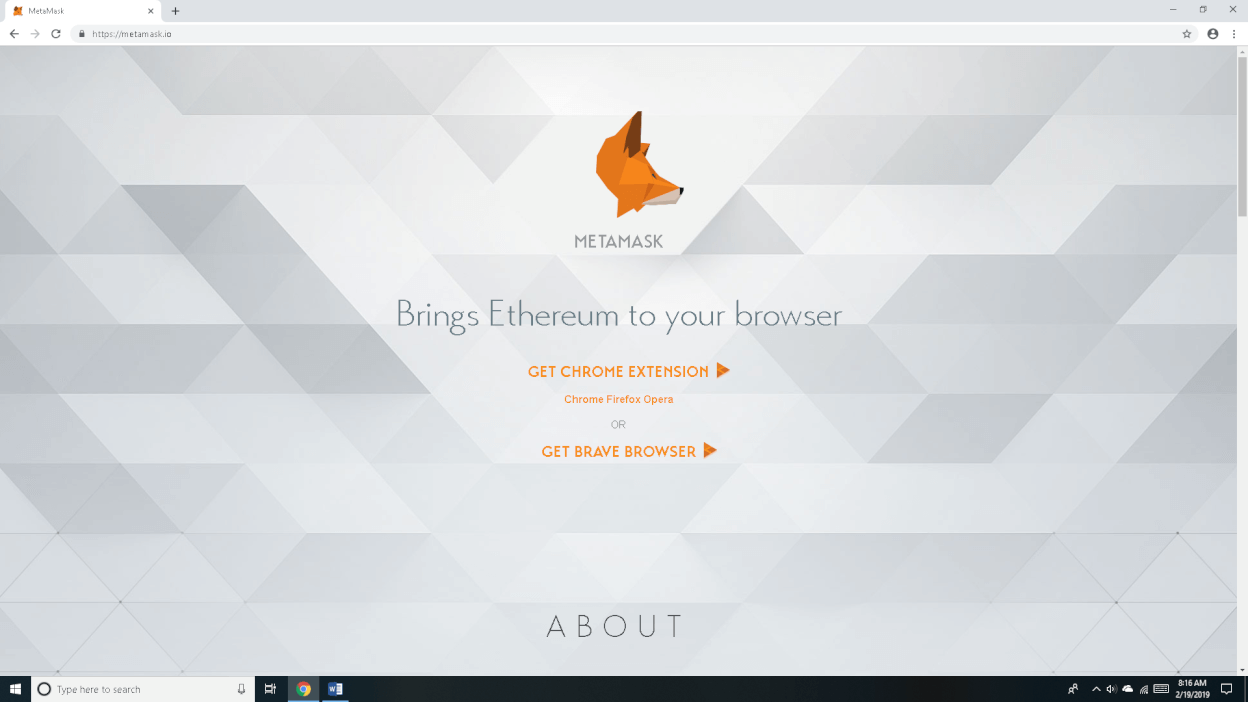
When you are on the MetaMask website, please click the button or link to install the MetaMask extension for Chrome.
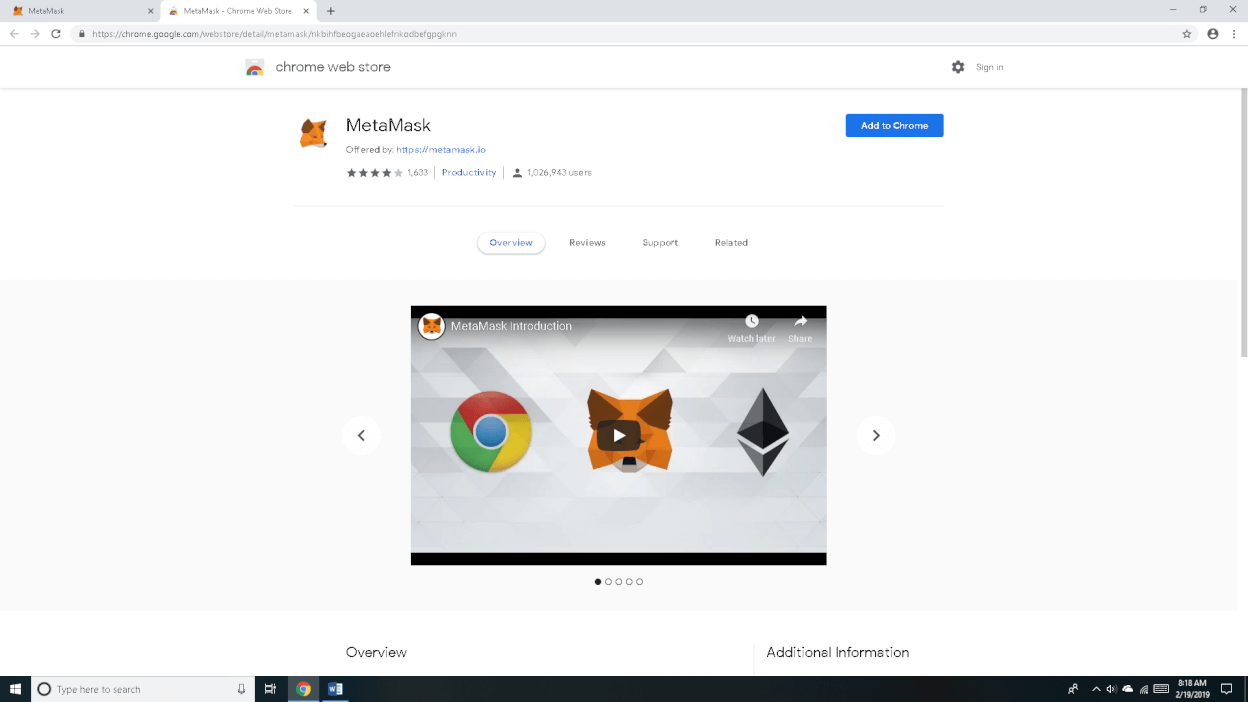
Review Introduction Video and Add Extension
On the next page, you may notice a MetaMask introduction video. We recommend that you review this video. On the same page, you should see an “Add to Chrome” button. Click this button to add MetaMask as an extension to your Chrome browser.
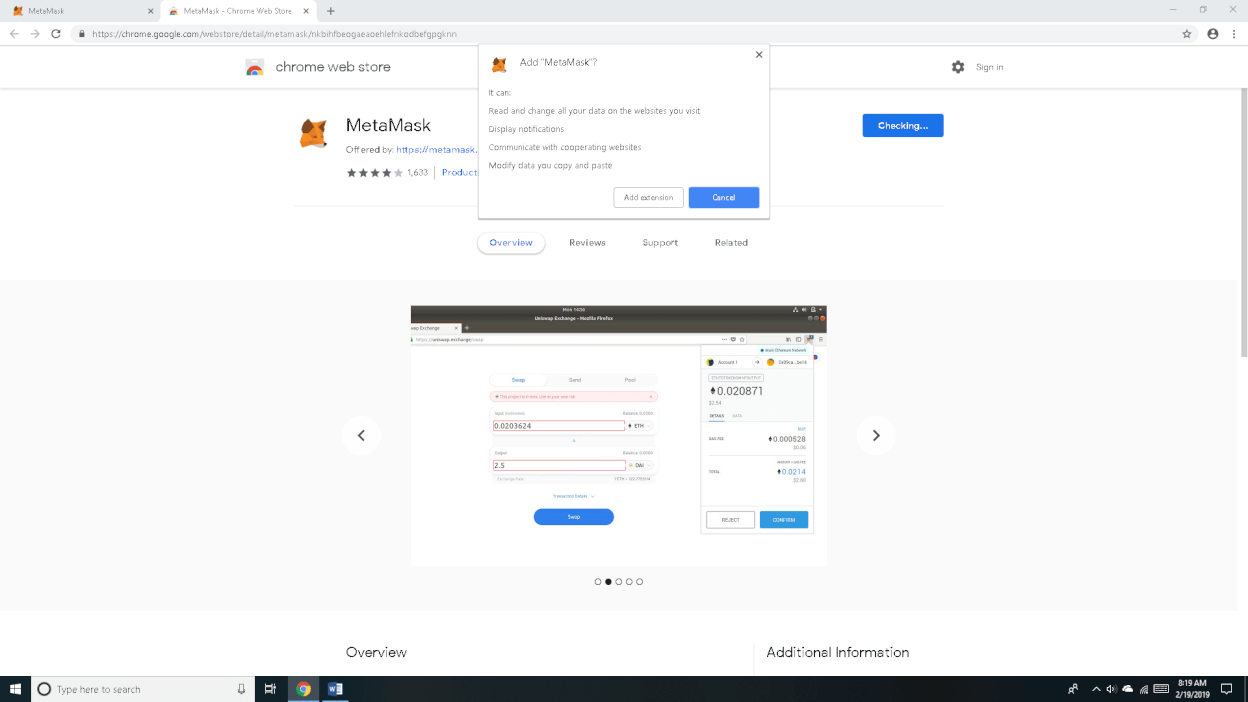
Grant Permission to Add Extension
You will see a pop-up window asking you to confirm that you want to add MetaMask as an extension to Google Chrome. The pop-up box will describe the permissions MetaMask needs. MetaMask needs these permissions so that the extension can connect your wallet to websites and blockchain applications, including the Akemona website. The permission request is generic because MetaMask supports many websites and blockchain applications.
If you have concerns, we suggest that you review our Privacy Policy and MetaMask’s privacy materials to understand what information may be shared when you install and use MetaMask. If you are still concerned, you may choose to use Chrome solely for your interactions with the Akemona website and another browser, such as Firefox, Microsoft Edge, Opera, Safari, or Brave, for other internet browsing activities. You may also want to review the extensions installed in your other browsers, since many browser extensions request permissions to read or change site data.
If you decide to proceed, click the “Add extension” button on the pop-up window.
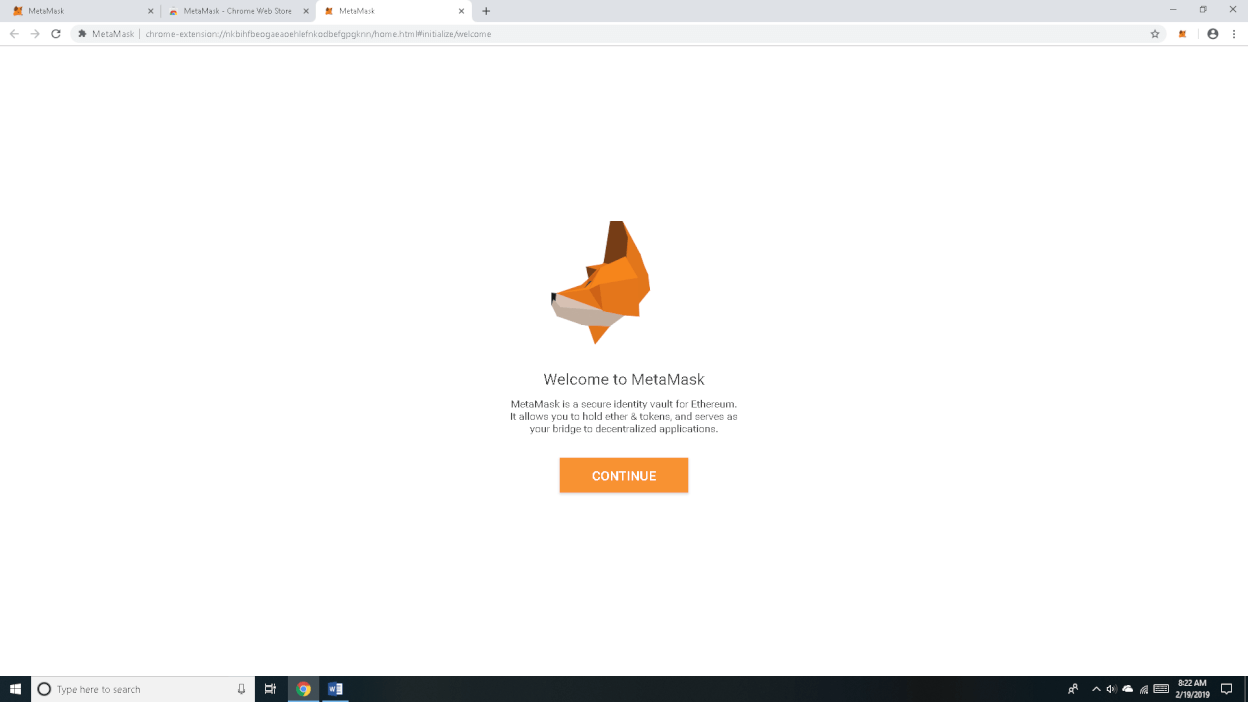
Click “CONTINUE” to proceed.
Create MetaMask Password
Please create a password for your MetaMask digital wallet. This is the password you will use to unlock MetaMask on this device and approve wallet activity. While MetaMask may allow a minimum password length, we recommend that you use a strong password or passphrase with a mix of words, numbers, and special characters.
Please note that only you will know the password for your MetaMask wallet. If you forget your password, you may be able to restore your wallet using your Secret Recovery Phrase. If you lose both your password and your Secret Recovery Phrase, you may permanently lose access to your wallet and digital assets. The “Import with Secret Recovery Phrase” option is used to restore or import your wallet if you have access to your Secret Recovery Phrase. We have discussed strategies for digital asset security in our Education Center. We recommend that you review those materials.
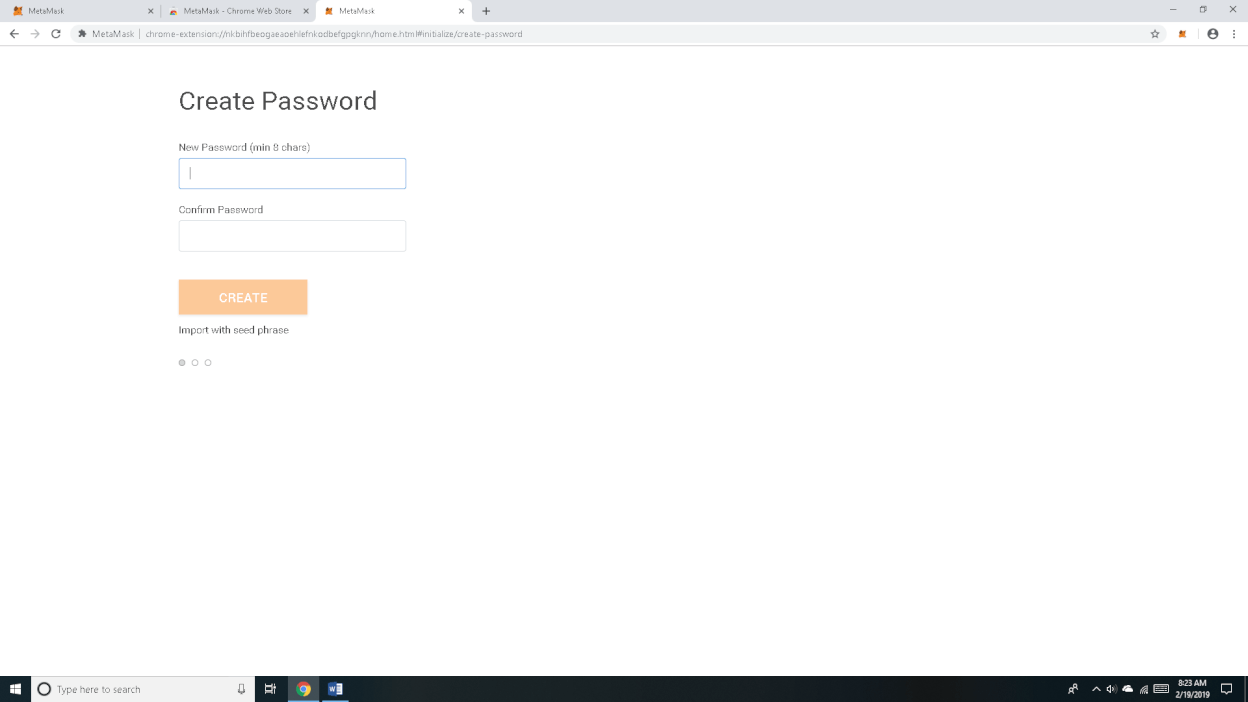
When you are ready, enter a password, confirm it in the displayed text boxes, and click the “CREATE” button.
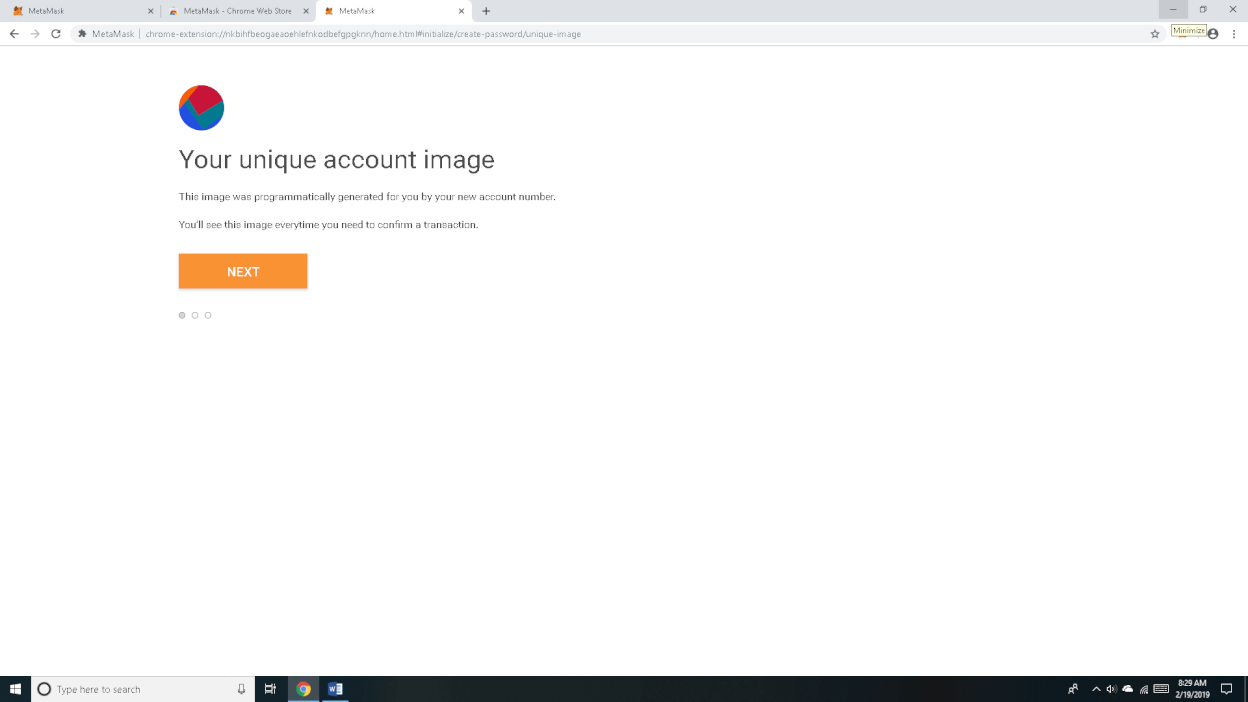
Take Note of Your Unique Account Image
A MetaMask account will be created for you, and you may see a unique account image or account icon. This account image helps you visually identify the account you are using when you review or confirm transactions. Please click the “NEXT” button to continue configuring your MetaMask wallet.
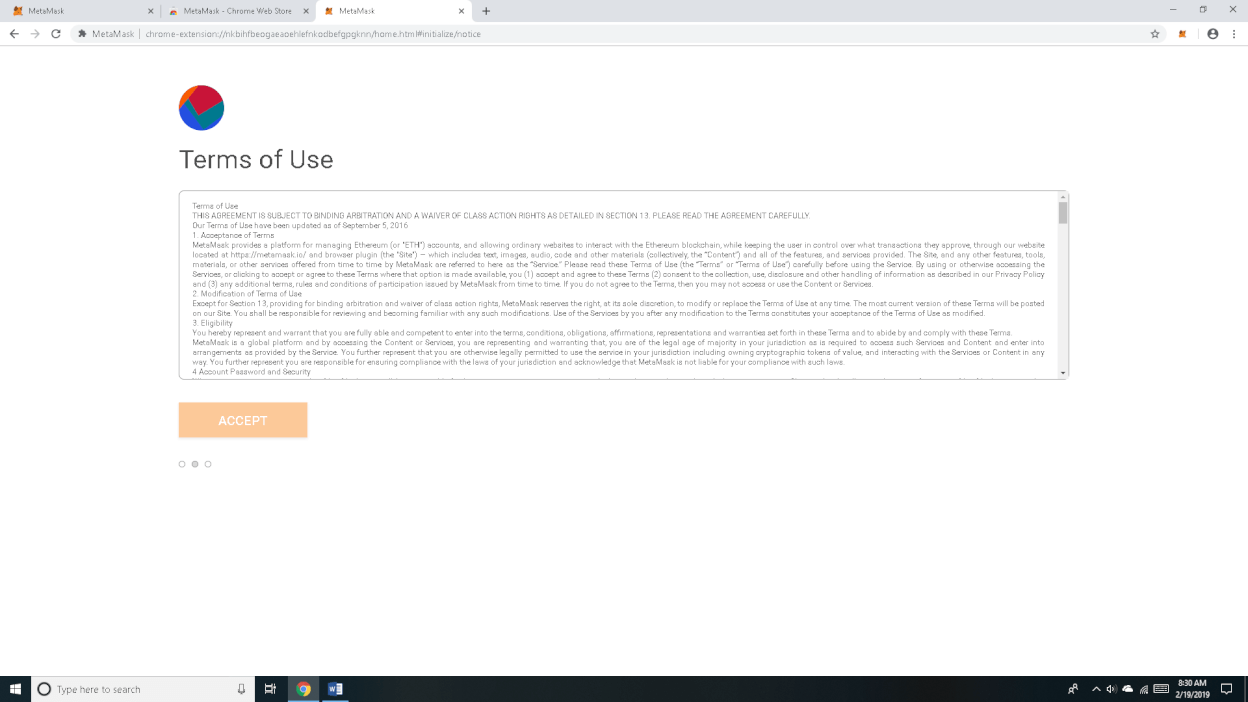
Review and Accept Agreements and Notices
Please review and accept MetaMask’s Terms of Use.
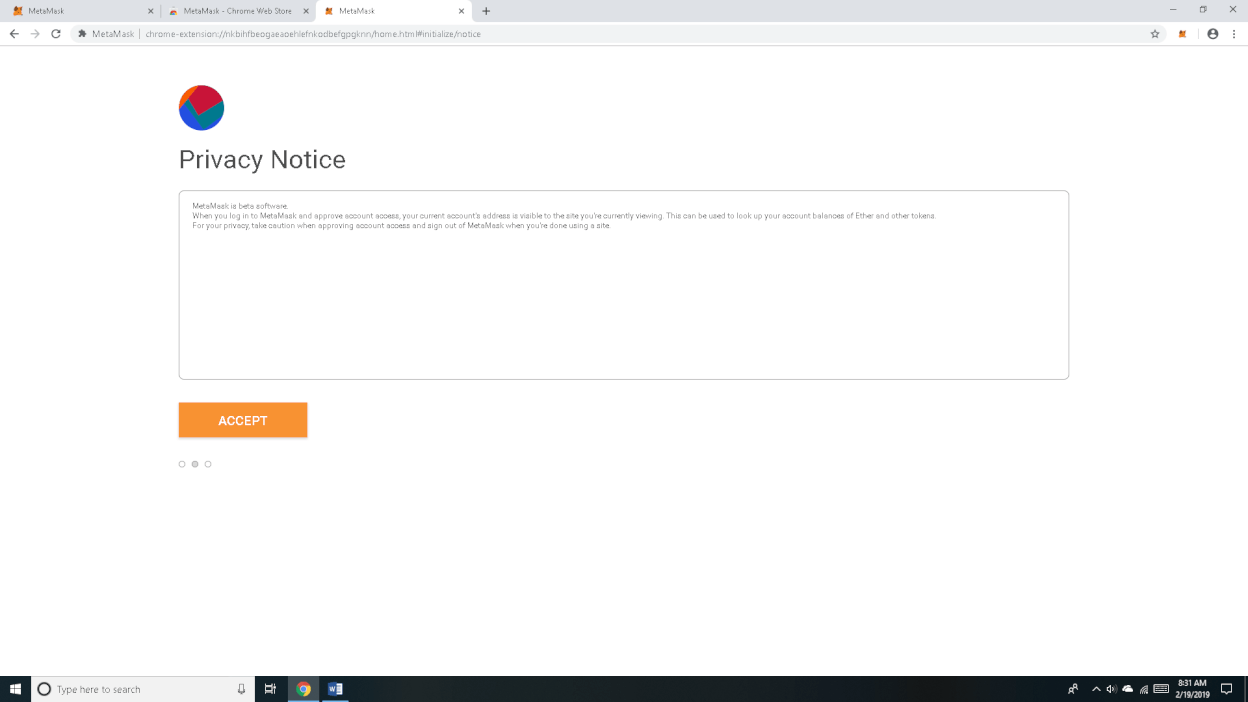
Please review and accept MetaMask’s Privacy Notice. Please be aware that anyone who has access to your public account address can look up public blockchain activity associated with that address, including token balances and transactions. However, your public account address cannot be used by itself to transfer funds out of your wallet without your approval and private key authorization.
Your public account address is somewhat similar to an account identifier that you can share to receive funds, but it should not be confused with a private key or Secret Recovery Phrase. Your private key and Secret Recovery Phrase must never be shared. For further information on this topic, we recommend that you review Digital Wallet Basics in our Education Center.
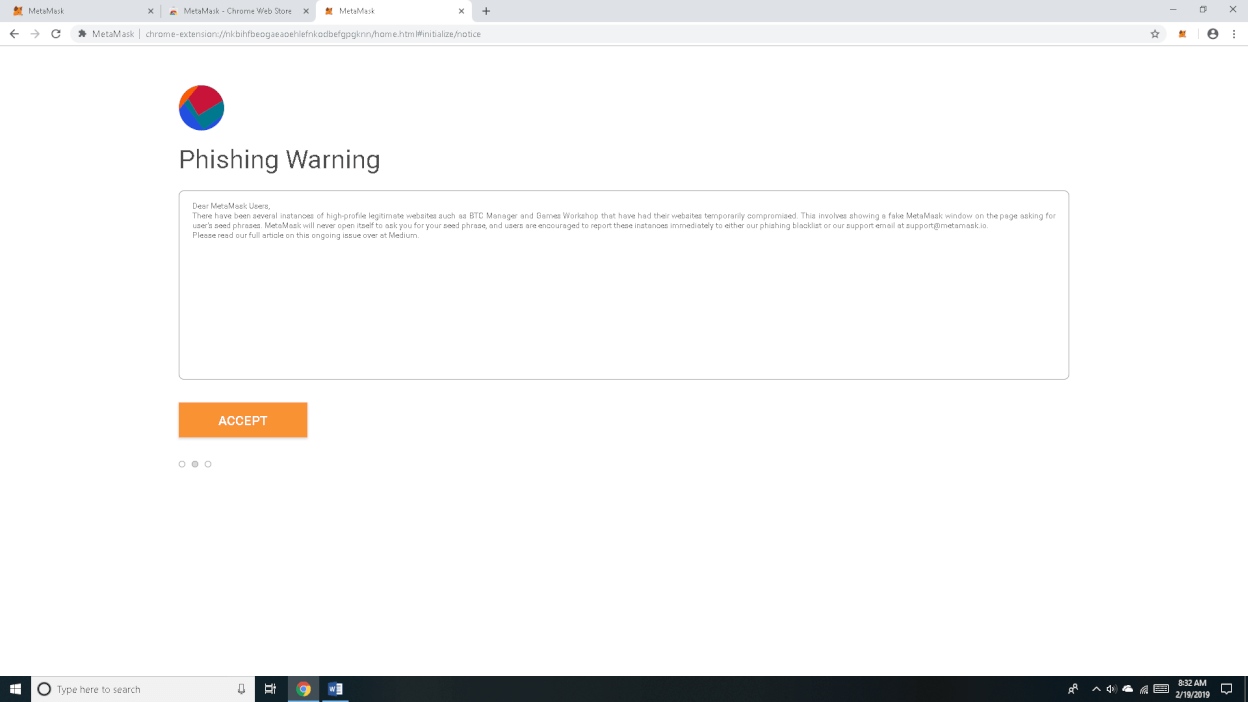
Please review and accept the phishing warning. Please be aware that anyone who has access to your Secret Recovery Phrase can recreate your wallet and transfer your digital assets out of your wallet. Therefore, you must protect your Secret Recovery Phrase and never share it with anyone. Akemona, MetaMask, or any other legitimate website or support representative will never ask you for your Secret Recovery Phrase or your wallet password.
Save Your Secret Recovery Phrase
MetaMask will show you your Secret Recovery Phrase. Please remember that if you lose the password for your MetaMask account or lose access to the computer on which MetaMask was installed, this is the phrase you will need to recover your MetaMask wallet. Unlike a bank account, there is no customer service representative who can reset your MetaMask wallet. You are solely responsible for safeguarding your password and Secret Recovery Phrase.
Please review the following page carefully. We recommend that you write your Secret Recovery Phrase on paper and keep it as securely as you would keep your other valuables. Do not email it to yourself, upload it to cloud storage, save it in an unencrypted file, or share it with anyone.
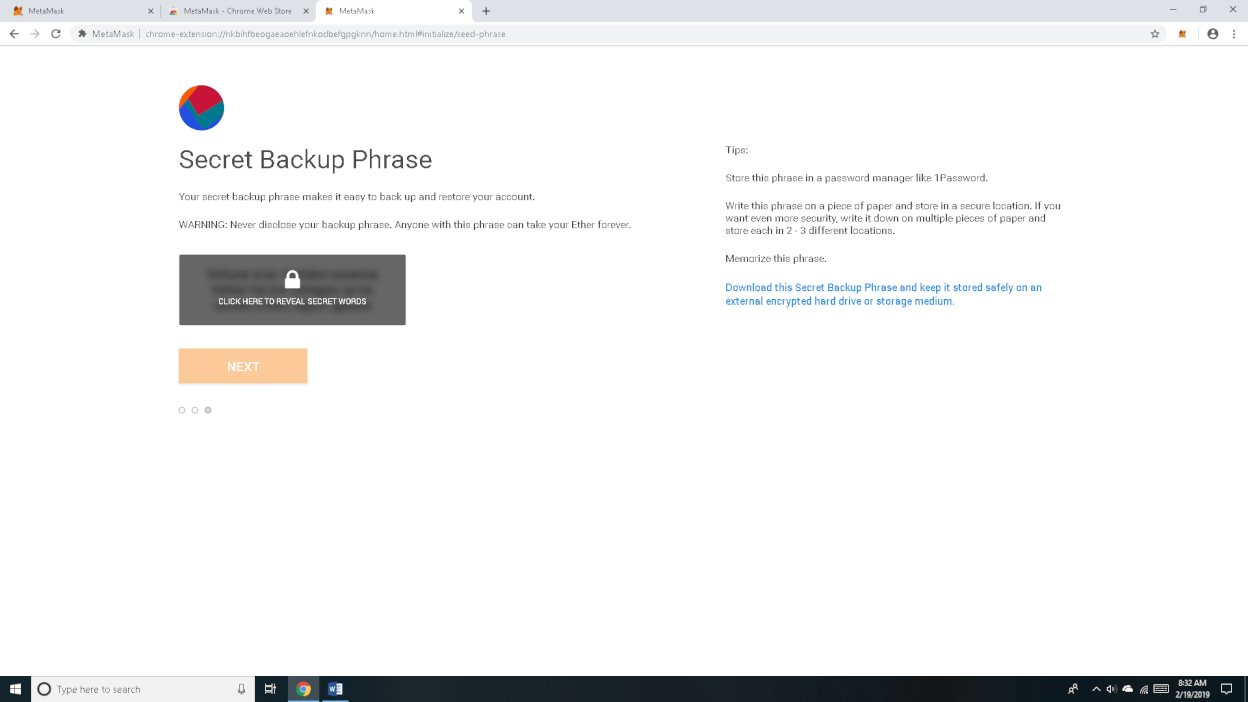
After clicking the lock icon, you will see your 12-word Secret Recovery Phrase. Please review this page and carefully read the warning. Click the “NEXT” button to continue.
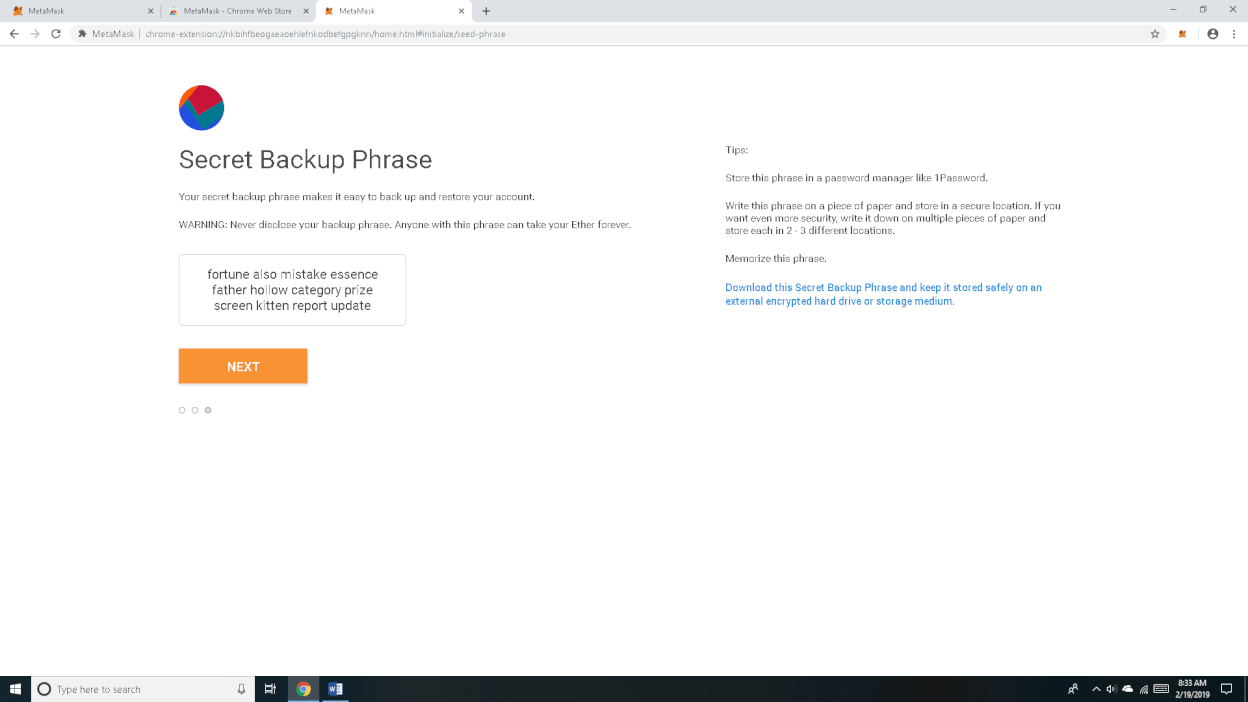
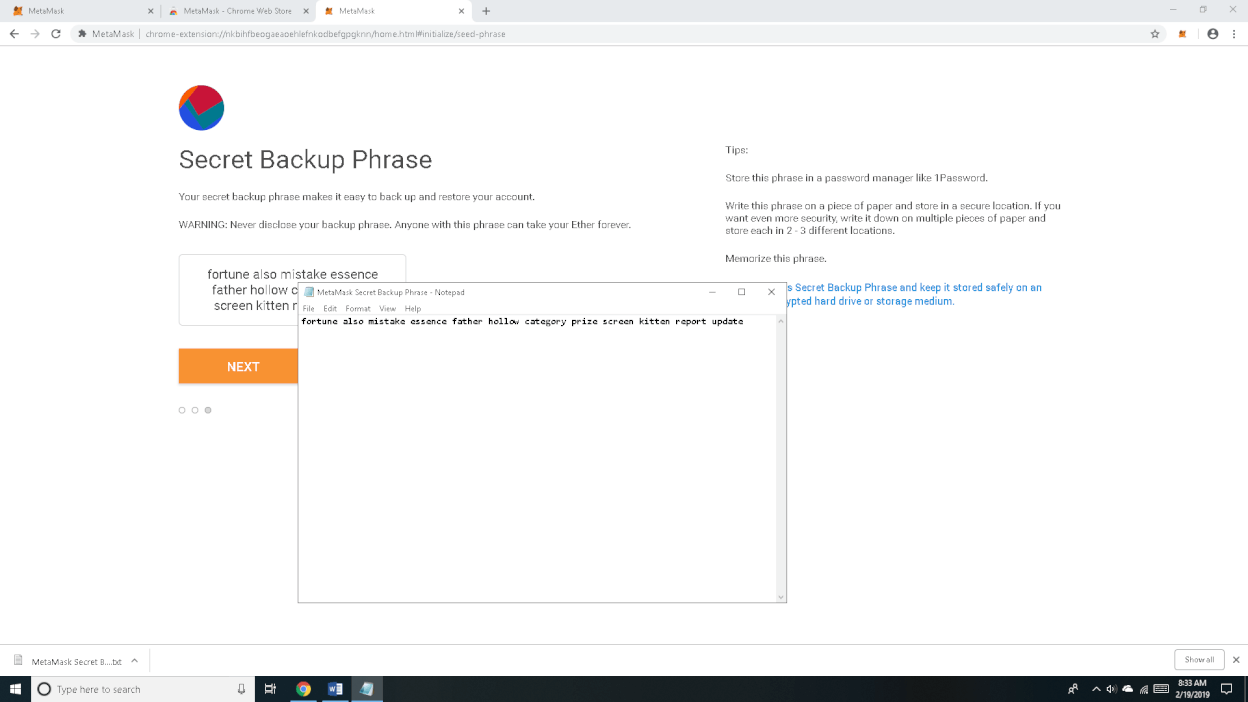
The Secret Recovery Phrase may be displayed in a format that allows you to copy, save, or print it. We recommend against saving it in an unencrypted file on your computer. If your computer fails, is stolen, or is compromised by malware, you may lose access to your wallet or expose your Secret Recovery Phrase to others. We recommend that you keep your Secret Recovery Phrase offline in a secure place. If you print it, keep the printout as securely as you would keep any other valuable document.
Confirm Your Secret Recovery Phrase
We recommend that you confirm your Secret Recovery Phrase by clicking the words in exactly the same order in which they appear in the 12-word Secret Recovery Phrase.
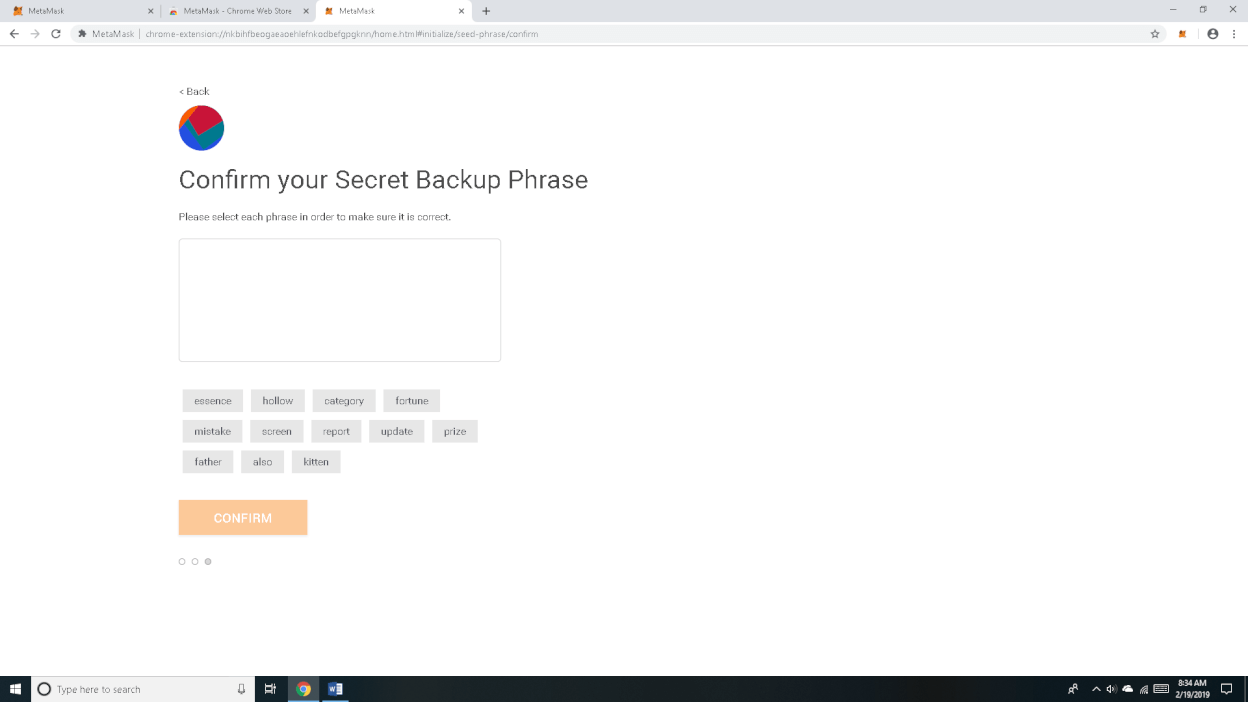
Please continue confirming your Secret Recovery Phrase by clicking the words in the same order.
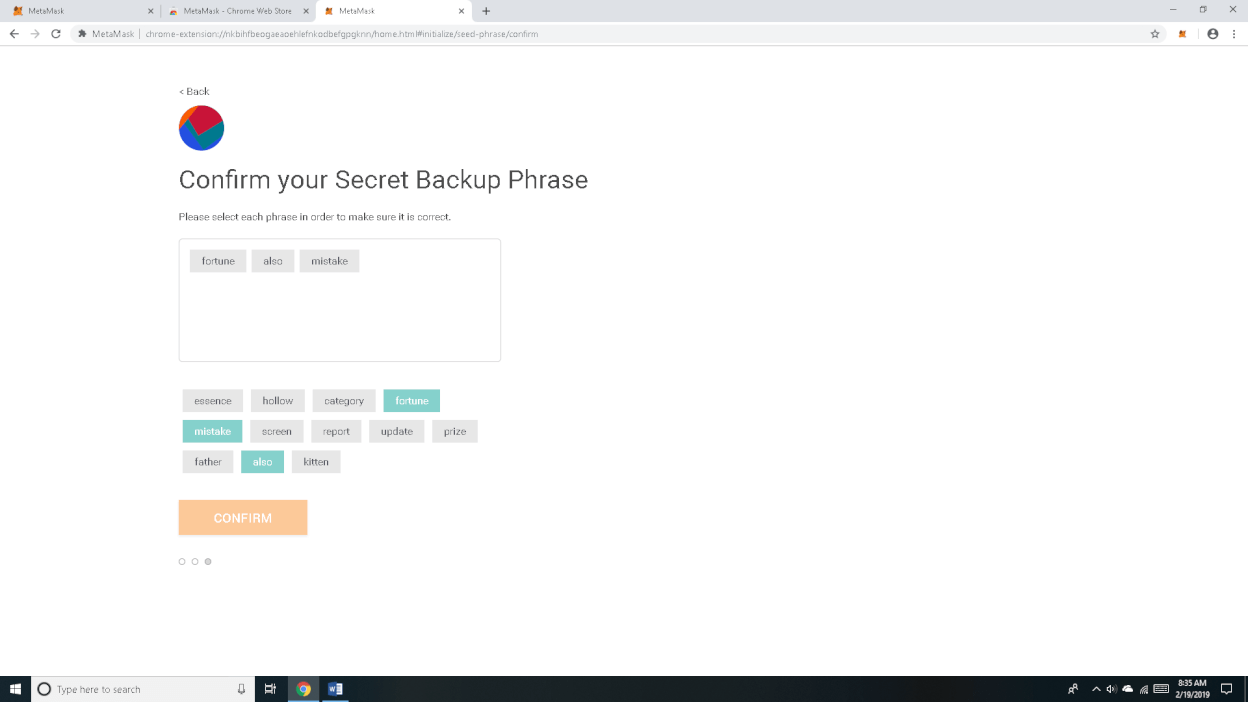
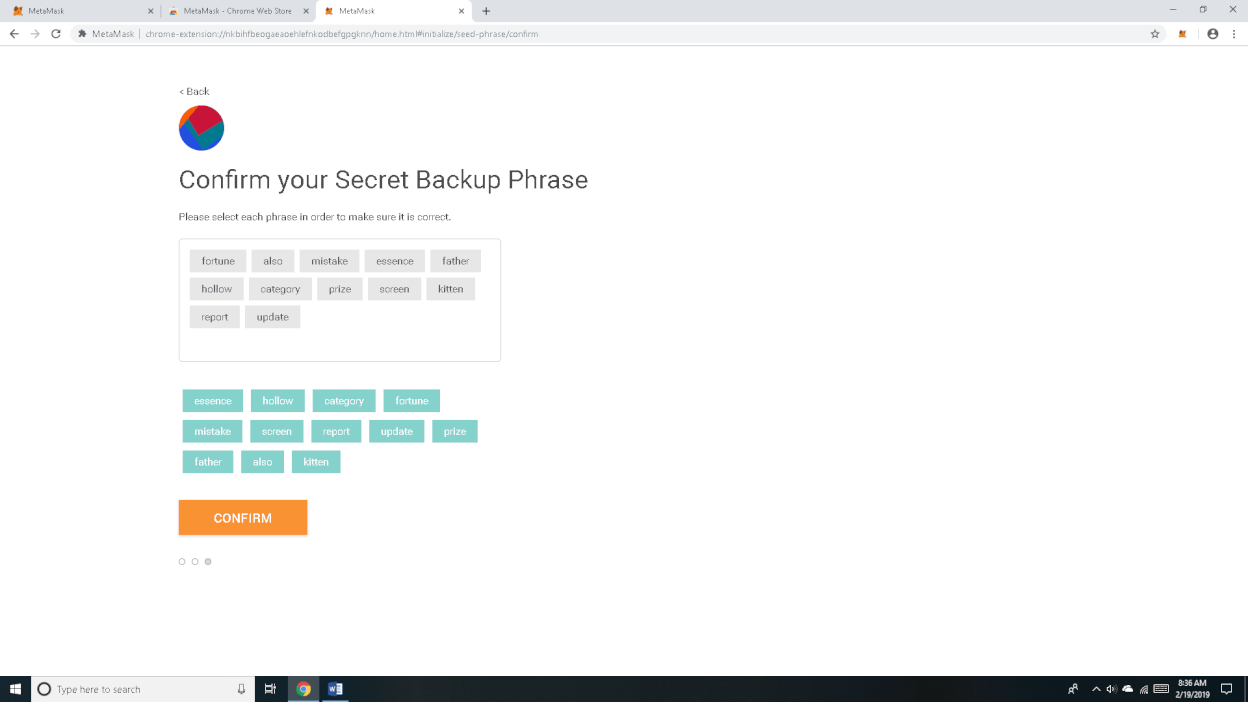
Once you have selected all the words in the correct order, please click the “CONFIRM” button.
Deposit Ether or the Required Network Token
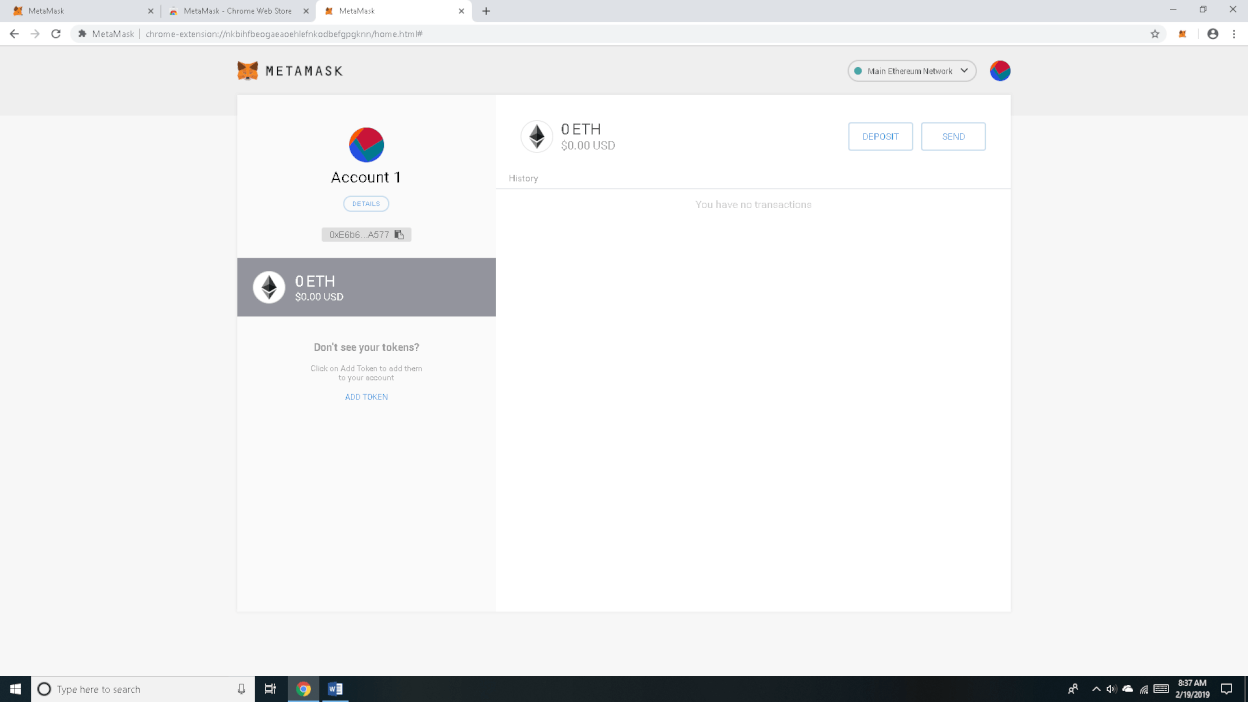
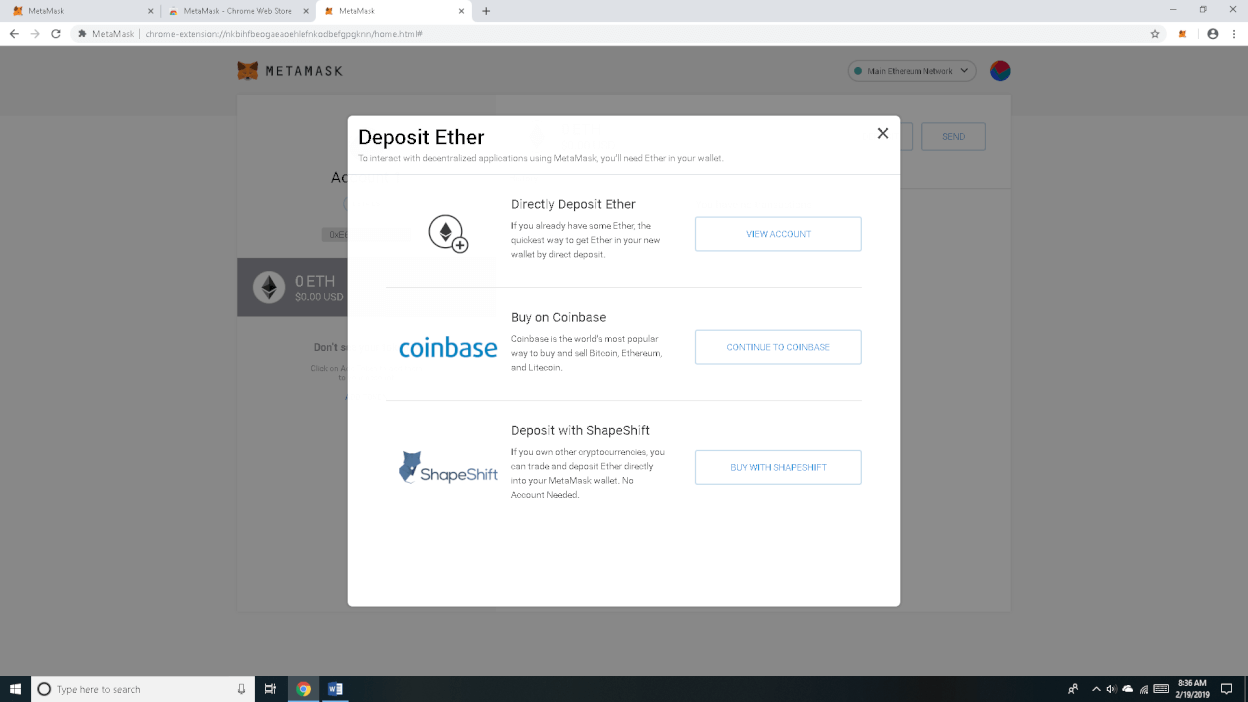
If you entered your Secret Recovery Phrase correctly, the following window will appear. You are all set up to start using your MetaMask wallet. You can transfer ETH or another required network token into your wallet at this time, or you can do it later.
To transfer or send digital assets out of your wallet, approve a USDC payment, or interact with a smart contract, you will need enough of the applicable network token in your wallet to pay gas. For Ethereum Mainnet and Arbitrum, gas is generally paid in ETH. For Polygon PoS, gas is generally paid in POL, although some wallets may still display MATIC if the network settings have not been updated. For BNB Chain, gas is generally paid in BNB. Please review our article on “What is Blockchain Gas?” for a better understanding of blockchain transaction fees.
Review Your MetaMask Wallet
If you decide not to transfer ETH or another network token into your MetaMask account immediately, you can close the deposit window. You will then see your MetaMask wallet, which will show the balance of the native token for the selected blockchain network. Congratulations! You have finished the MetaMask setup. If you need further instructions on how to use MetaMask, please review Using MetaMask in our Education Center.